
Once your shift is open, the POS screen is where you spend the day. This is how to ring up a customer order from start to finish, including modifiers, discounts, and printing the receipt.
The POS layout
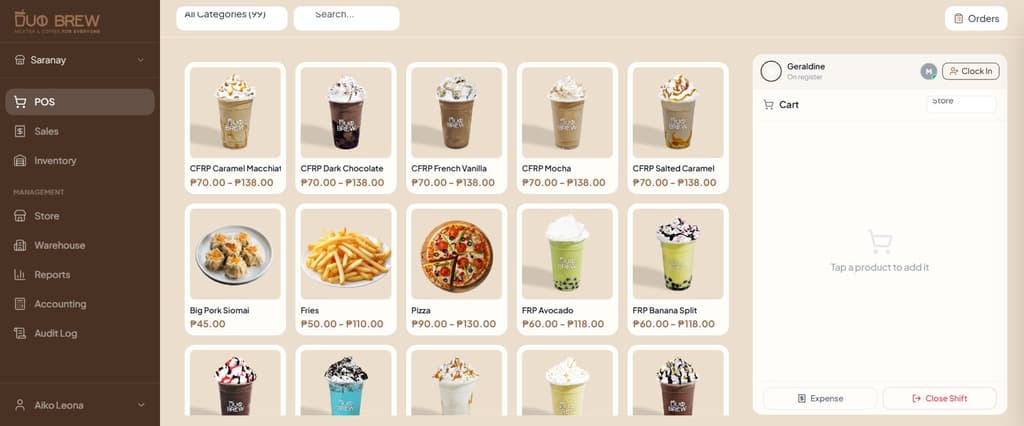
There are 3 main areas on the POS screen:
- Product grid (left/center) — your menu items, grouped by category at the top (Milktea, Coffee, Food, etc.)
- Cart (right) — items the current customer is ordering, with quantity and total
- Header bar — search box, Orders button (for QR orders), and shift actions
How to take a sale
Tap a product to open it
Tap any product in the grid. A popup appears showing all available sizes (Regular / Medium / Large / Jumbo / Buy 1 Take 1), flavors (if any), and add-ons.
Choose size, flavors, and add-ons
Pick the size the customer ordered. If the drink has flavor options (e.g. Matcha, Strawberry), tap the ones they want — you can select multiple. Add-ons (boba, nata, extra shot) work the same way, and each one adds to the price.
The total price at the bottom of the popup updates live as you add options, so you can read the exact amount to the customer before confirming.
Set quantity and add to cart
Use the − and + buttons to set the quantity. Tap Add to Cart. The item appears in the cart on the right.
Add more items or adjust the cart
Tap more products to keep building the order. You can:
- Tap + or − next to any cart item to change quantity
- Tap the 🗑️ trash icon to remove an item
- Use the search bar at the top to find a product by name
Apply a discount (if needed)
If the customer has a discount, tap the Discount field in the cart and enter the amount in pesos. Senior citizen, student, promo — whatever it is, enter the peso value and the total adjusts.
Pick a payment method
Tap either Cash or GCash at the bottom of the cart. If the customer pays in cash, enter the amount they handed you so the POS can calculate their change.
Tap Charge and print
Tap the big Charge button. The sale is saved, inventory is deducted automatically based on each product's recipe, and — if your printer is connected — the receipt prints. The cart clears and you're ready for the next customer.
No printer connected?
The sale still goes through even if the printer is offline. You can reprint the receipt later from the Sales page. To connect a printer, see the printer troubleshooting guide.
Common gotchas
- Wrong product? Remove the item from the cart with the trash icon — don't void the whole sale.
- Customer changed their mind about payment method? Just tap the other method before hitting Charge.
- Accidentally charged? You can void a sale from the Sales page — see the voiding a sale article.